Changing label scales is only possible for scalable objects or AutoCAD label objects. Non-scalable objects are ignored.
Input request
Select objects:
Select the objects whose scales you wish to change. This input request is repeated until the object selection is concluded by pressing the Enter key.
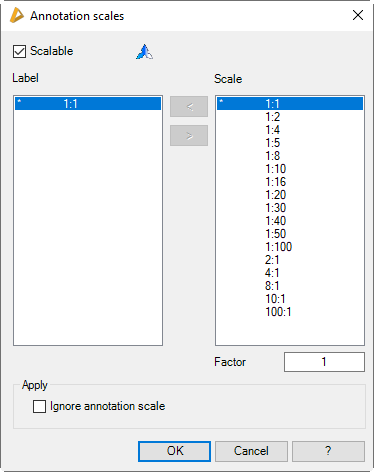
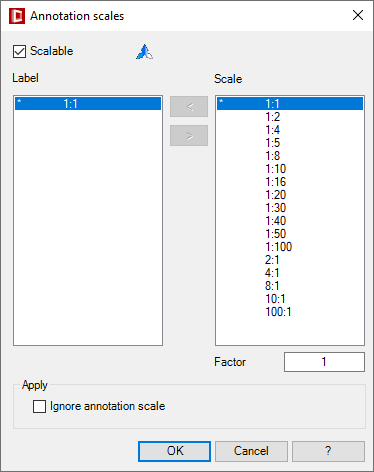
Then the Dialog box Label scales is opened where you can change the scales of the selected objects.
Dialog box Label scales
db_ath_leader_scales
Scalable
Turns the scalability on or off.
Label
Lists the scales which are to be assigned to the selected objects.
[<]
Assigns the scale selected in the scale list to the selected objects.
[>]
Removes the scale selected in the scale list from the chosen objects.
Scale
Lists the scales available in the drawing.
Factor
Skips to the scale with the entered factor in the scale list.
End of program
OK
Transfers the properties defined in the dialog box to the selected label objects.
Cancel
Closes the dialog box without and change to the selected objects.
Note
• In the Dialog box Label scales the currently set label scale is displayed (not the scales of the selected leaders). Scales not displayed (which, for example were formerly assigned) are removed!
• You will also find further information about the scalability of objects in the Chapter Scalability (label objects).