With this command you can create single or multi-line and multi-language texts with a leader line for the labeling of objects. The leader can be formatted in various ways, for example with a frame or symbol.
Input request
Specify starting point of the leader line or [?]:
Use the mouse or enter coordinates to specify the starting point of the leader line.
Specify next point or [Back/?]:
Use the mouse or enter coordinates to specify the next point of the leader line (kink point).
You can repeat the last input request with the Undo option. Enter ENTER to write a text on the leader. A dialog box opens for this.
Dialog box Leader
db_ath_leader
Display section
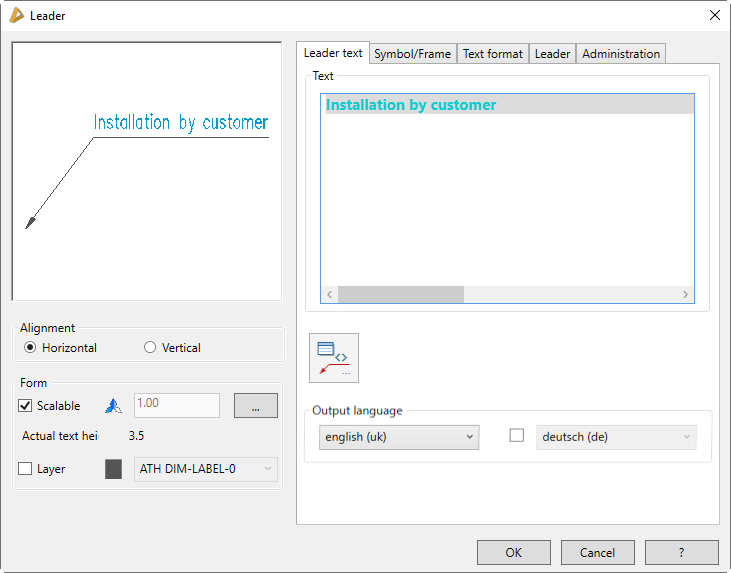
At the top left you can see a preview of:
Dialog box section Alignment
Horizontal
Aligns the leader text horizontally so that it is legible from the front.
Vertical
Aligns the leader text vertically so that it is legible from the right.
Dialog box section Display
Scalable
Switches the scaling feature of leaders on or off. You can change the current scale factor in the input field.
[...]
Opens the Dialog box Label scales, where you can assign scales to the leader. You will find further information in the Chapter Label Scale.
Leaders with several scales can be aligned differently in different scales.
Actual text height
Specifies the actual text height. This is calculated from the current text height and the scale factor.
Layer
Activates the layer replacement. If you activate the tick box, you can change the layer set as standard.
Operating section
The operating section contains the following tabs:
The text and symbol properties are object specific; the manager is the similar for most objects. You will find a detailed description of the functions of the manager in the Chapter Management of objects.
Register button Leader text
db_ath_leader_text
Dialog box section Text
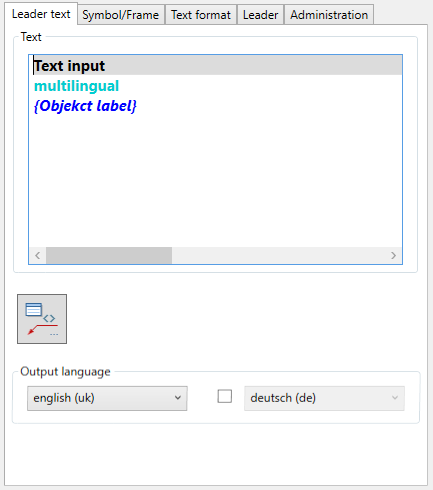
Defines the text in the chosen language.
The text is entered directly into the input field. If you enter a text, it is displayed in black. Multilingual texts are displayed in turquoise and object labels turn blue and since they cannot be edited, they are also displayed in wavy brackets.
Additional options are available in the context menu.
Options in the Context Menu
Some context menu options are not available for object labels.
Cut
Cuts the selected text and inserts it into the clipboard.
Copy
Copies the selected text to the clipboard.
Insert
Inserts the text from the clipboard.
Contents of the clipboard are always inserted as a new text line.
Remove
Deletes the entire row.
Multilingual
Opens the Dialog box Designation, where you can define multilingual texts. You will find further hints on this in the section Designation. User defined
Opens another context menu with multilingual standard texts from the text database ath_user.rsx. Select a text to apply it.
You will find further information about adapting the text database in the chapter Multilingual standard texts.
Insert field
Inserts a text box. You will find further information on this subject in the AutoCAD help.
Upwards
Moves the row by one position upwards.
Downwards
Moves the row by one position downwards.
Opens the Dialog box Label. You will find further information on this in the Chapter Label.
Dialog box section Output language
First language
Defines the first language of the leader text.
Second language
Defines the second language of the leader text. The tick box must be activated to display the second language.
Label
Opens the Dialog box Label, where you can adapt the label setting of automatically labeled objects. You will find further information in the Chapter Label.
Register button Symbol/frame
db_ath_leader_symbol
Dialog box section Frame
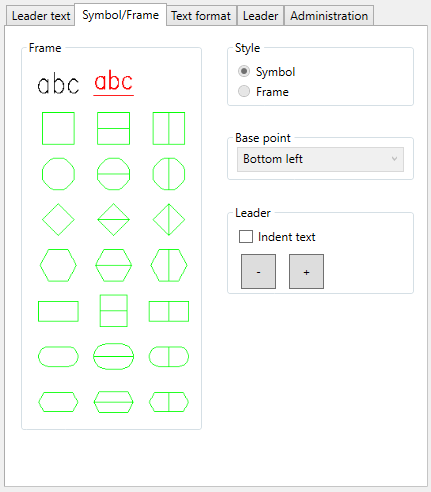
Defines the selected frame as border for the leader text. The selected frame is displayed directly in the dynamic preview.
Dialog box section Style
Symbol
Defines the border of the leader text as a symbol. Symbols enclose either the first or first two constituents of the leader text.
With leaders with an arrow, texts are not displayed from the third text constituent.
Frame
Defines the border of the leader text as a frame. A frame always encloses the complete leader text. The Frame option is only available for single-line symbols.
Base point
Defines the base point of the leader. This function is not available for leaders with a leader line.
Indent text
Activates the text indent.
The text indent is inserted in the opposite direction of the leader arrow.
[-]
Reduces the indent by one step.
[+]
Increases the indent by one step.
One step corresponds to the height of the leader text.
Register button Text format
db_ath_leader_textformat
Dialog box section Text format
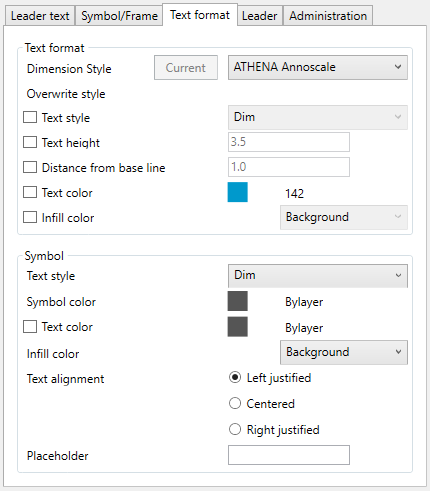
For leader texts the settings of the current dimension style are used as standard. Here, you can overwrite single style settings.
Dimension style
Here you can select the dimension style for the leader line.
Current
Sets the current dimension style of the drawing for the leader line. The button is only active when the current dimension style is not set.
Text style
Switches in replacement of the text style. If you activate this tick box, you can select a text style from the list.
Text height
Switches in replacement of the text height. When you activate this tick box, you can define a new text height in the input field.
The text height defined here is multiplied by the dimension scale factor.
Distance from base line
Switches in replacement of the distance between the text and the base line. When you activate this tick box, you can define a new distance in the input field.
The distance defined here is multiplied by the dimension scale factor.
Text color
Switches in replacement of the text color. When you activate this tick box, you can define a new text color by clicking the color button.
Infill color
Switches in replacement of the infill color of the leader text. When you activate this tick box, you can define a new infill color by clicking the color button.
Dialog box section Symbol
Text style
Switches on replacement of the symbol text style. If you activate this tick box, you can select a text style from the list.
Symbol color
Switches on replacement of the symbol. When you activate this tick box, you can define a new symbol color by clicking the color button.
Infill color
Switches on replacement of the infill color of the symbol text. When you activate this tick box, you can define a new infill color by clicking the color button. For color changes the dialog box Color is started. You will find further information on this subject in the AutoCAD documentation.
Text alignment
Changes the text alignment. You can align text left justified, centered and right justified. The text alignment acts on texts in frames as well as on texts arranged below symbols. As standard, texts in symbols are aligned centered.
Placeholder
Defines a text as placeholder for the symbol width. With the placeholder you can influence the width of symbols. In this way it is possible to design symbols with different widths of text with uniform width.
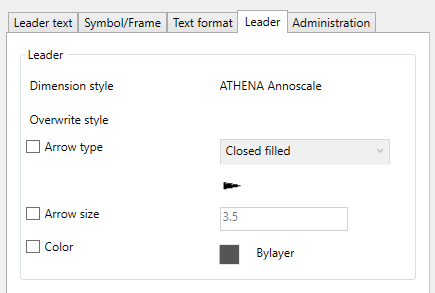
Register button Leader
db_ath_leader_line
For leader lines the settings of the current dimension style are used as standard. Here, you can overwrite single style settings.
Dimension style
Displays the dimension style used for information.
Arrow tip
Switches in replacement of the arrow tip. If you activate this tick box, you can select a new arrow type from the list.
Arrow size
Switches on replacement of the arrow size. When you activate this tick box, you can define an arrow size in the input field.
Color
Switches on replacement of the arrow color. When you activate this tick box, you can define a new arrow color by clicking the color button. For color changes the dialog box Color is started. You will find further information on this subject in the AutoCAD documentation.
Note
• As standard, the leader line is drawn on the current dimension layer. You will find information on layer assignment in the Chapter Layer.
• When stretching leaders with an arrow, the leader arrow always adapts to the new direction.
• You can edit leader texts with Modify object or by double clicking.