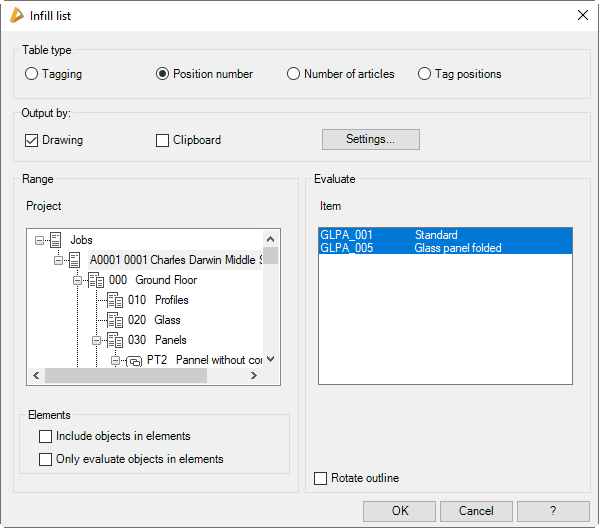
A parts list of the infills is generated with this command. It can be directly inserted into the drawing and optionally copied to the Windows clipboard to insert it into another program, e.g. Excel.
To create a parts list, the parts must have an item number and have been allocated to a job with the Project browser.
When you run the command, you may be prompted to update identifiers:
This happens if you have carried out a common part recognition with the command Assign tags. Identifiers should be updated if there have been dimensional changes to infills. If in doubt, we recommend that you always update the identifiers, otherwise errors may occur in the BOM.
Dialog box Infill list
db_ath_st3d_panel_list
Dialog box section Table type
Tag
Creates a parts list in which parts with the same tags are brought together. A prerequisite for this is that you have previously assigned tags. See Assign tags.
Number of items
Creates a parts list in which the selected items are brought together. For example all glass panels.
Position number
Creates a parts list of the individual positions. The same parts are not brought together.
Tag positions
Creates a list of tags with the positions contained in them. A prerequisite for this is that you have previously assigned tags. See Assign tags.
Dialog box section Output
Drawing
Generates a list which is inserted into the drawing. Alternatively, an existing list can be updated. An input request follows for inserting the list.
Clipboard
Copies the list to the clipboard. As standard, this tick box is deactivated.
Settings ...
Opens the Dialog box Settings table, where you can configure the list settings. You will find further information on this in the section Table.
Dialog box section Region
Project
Shows the project structure of the drawing. Here, select the job which you want to analyze.
Include objects in elements
Also writes infills to the parts list which have been defined in an element.
Only evaluate objects in elements
Writes only infills to the parts list which have been defined in an element.
Lists the infills of the selected job. Here you can select which parts are to be included in the parts list. By holding down Shift or Control (Windows standard) a multiple selection is possible.
Rotate outline
Rotates infills not displayed orthogonally. The longest side is aligned horizontally. This affects the dimensions of the enclosing rectangle of the infill.
End of program
After termination of the dialog box with OK, then, depending on the setting, the infill list is inserted into the drawing and/or copied to the clipboard. After copying to the clipboard, a message appears which you must confirm. With insertion into the drawing, the following appears:
Input request
Specify insertion point or [Replace/?]: Insert the list into the drawing at the desired point or choose the Replace option to update an existing list.
With the option ? you call the help.
Note
The individual layers of the infills are analyzed if the option Analyze all layers is activated in Dialog box Apply infill.
Note: This function produces lists of infills. CAD-PLAN GmbH can in no way be held liable for the results of this function and any errors and losses arising from it.