Checks whether items of a project are assigned unique item numbers.
If different positions (e.g. a screw and a nut) have been assigned the same item number, problems may arise during the evaluation. It can lead to confusion, especially when exporting to ERP software.
With the item check, you can correct these non-unique item numbers or assign new item numbers.
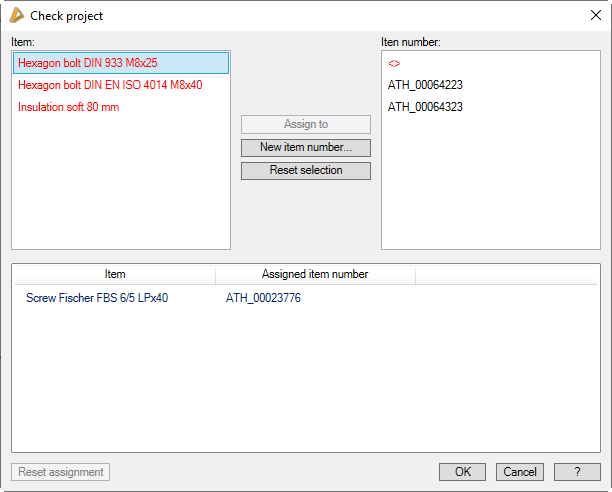
Dialog box Check project
db_ath_build_audit
Items list
The left list contains items to which several or no item numbers have been assigned.
If you select an item here, only the numbers assigned to the article are displayed in the item number list.
Item number list
The right list contains the item numbers or square brackets <> if no item number is present.
When you select an item number, only the items associated with the item number are displayed in the items list.
In both lists, elements are displayed in red letters if there are no or more assignments. As a rule, this applies to all items, but there may be cases where this does not apply or there are no item numbers at all.
Item numbers that are shown in gray have not yet been assigned to an item.
Assignment list
The assignment list is located at the bottom, where the items and the assigned item numbers are listed.
If you select one or more lines, you can cancel the assignment.
Assign to
Assigns the selected item number to the selected item. As soon as you press the button, the selected objects are moved to the assignment list.
New item number
Assigns a new item number to the selected item. To do this, the Dialog box Item is opened. After you have specified an item number, the selected objects are moved to the assignment list.
Reset selection
Cancels the selection of items and item numbers.
Reset assignment
Cancels the assignment of items to item numbers. For example, if you notice that an incorrect item number has been assigned.
Program operation
Select an item number from the item list. Now only the item numbers that are assigned exactly to this item are displayed.
You can now select an item number and assign it. To do this, select an item number in the list and press the Assign to button.
If the correct item number is not listed, you can also create a new item number and assign it to the item. To do this, press the New item number button.
Both actions transport the selected item into the assignment list.
End of program
The assigned item numbers will only be assigned to the items on the assignment list when you terminate the dialog box with OK.
Cancel closes the dialog box without assigning item numbers.