Exports 3D designs of a job for use in building models. Supported formats are:
• *.ifc
• *.ath (Revit family)
A prerequisite for exporting as a Revit family is the previous import of this with the Import Revit family command.
Program operation
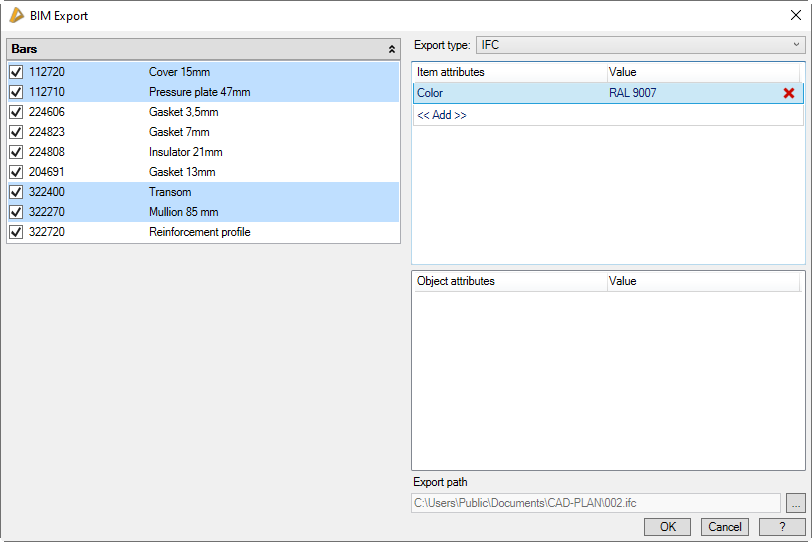
When you execute the command, the Dialog box Projects is displayed. Here, you select the job or partial job containing the objects to be exported. As soon as this has happened, a further dialog box follows in which you can adjust further export settings.
Dialog box Export to BIM
db_ath_bim_export
On the left side of the dialog box you can see the elements contained in the job (bars, infills, etc.)
By deactivating the switches in front of the respective object, you can exclude it from export.
Export type
Here, select the format for the export.
Once you have set the export type, the corresponding attributes are displayed below.
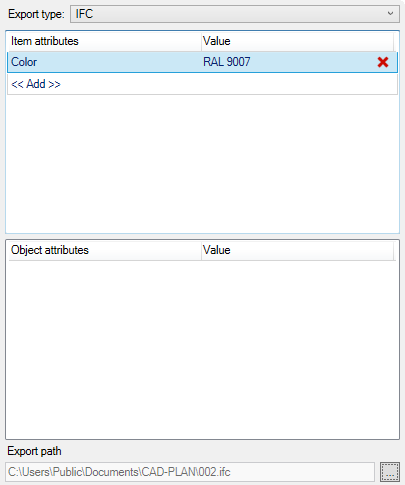
Dialog box section Export type IFC
db_ath_bim_export_ifc
Item attributes
Item attributes can be assigned directly to the selected objects. With <<Add>> you can create a new attribute with the corresponding value. You can change existing attributes by direct cell editing.
Object attributes
Here you can see which object attributes are activated. Using the Modify object label command, you can control which attributes are to be set.
Export path
Displays the current path including file name.
[...]
Opens the dialog box Save as, where you can adjust the path and the file name.
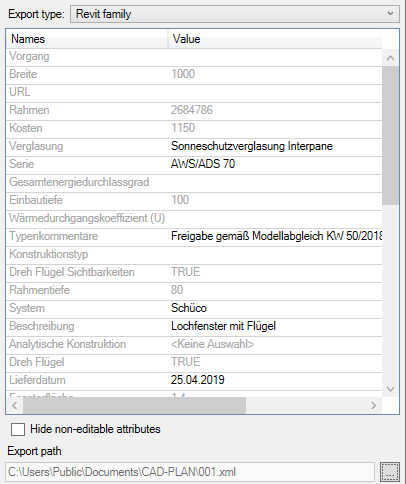
Dialog box section Export type Revit family
db_ath_bim_export_revitfamily
When importing the Revit family, their attributes are read from an *.xml file and displayed here. At this point you can adjust all text attributes.
Hide non-editable attributes
Hides all non-text attributes. These cannot be changed and are for information purposes only.
Export path
Displays the current path including file name.
[...]
Opens the dialog box Save as, where you can adjust the path and the file name.
End of program
OK
Closes the dialog box and saves the export file in the specified path. If successful, a speech balloon message appears at the bottom right of the program window.
Cancel
Closes the dialog box without saving an export file.